Google Translate Offline in Japan: Menus and Signs
How to set up Google Translate offline for Japan before you fly, what the camera reads well on menus and signs, and what it finds harder.
On this page
Disclosure Some links on this page are affiliate links. If you buy through them we may earn a small commission at no extra cost to you. It never changes what we recommend.
You're down a flight of stairs in a Shinjuku basement izakaya. One bar of signal, maybe none. The menu is a single laminated sheet of kanji, and the person at the next table is already eating something you want.
Point your camera at that sheet and Google Translate will read it — as long as you downloaded Japanese before you left home. Printed menus and station signs come out usable. Handwritten chalkboards are where it gets thin.
Here's the three-line version. Download the Japanese pack while you're on Wi-Fi at home, because that one tap is what makes the camera work with no signal. Expect good results on printed text, mixed results on stylised or hand-lettered signage. Speaking into the app for a back-and-forth conversation is a data feature on almost every phone, so don't plan your trip around it working in a tunnel.
📱 Download Japanese before you fly
Five minutes, tonight, on your home Wi-Fi. Not at the airport.
Open Google Translate, tap the language name at the top of either side of the screen, find Japanese, and tap the download button next to it. Google's own instruction is blunt about the timing: "Before you download languages, connect to Wi-Fi."
Android has one extra thing worth knowing. In the Downloaded languages list, some packs offer an Upgrade — a higher-quality version of the same language. Grab it at home, where size doesn't matter.
If you'd rather control when packs download, Android keeps that under Settings → Data usage → Downloaded languages, with options to ask first or to use Wi-Fi or mobile data.
One more tap while you're there: download English too. Offline translation needs both sides of the pair living on your phone.
📶 Which parts need data, and which don't
This is the part people get wrong, because the app doesn't announce it. It just quietly gets worse when the signal drops.

| What you're doing | With Japanese downloaded |
|---|---|
| Typing or pasting text | Works offline |
| Camera, pointed at a sign or menu | Works offline for downloaded languages |
| Translating a photo from your gallery | Works offline |
| Conversation / live translate (two people speaking) | Built around a connection on most phones |
| Phrasebook you saved earlier | Works offline |
The conversation-mode line deserves the detail. Google's live translate page says you can download languages for live translation offline — and then adds that the feature "is currently only available for Pixel 9, 10, and 11 users." Japanese↔English is on that offline pair list, alongside Spanish, French, German and a handful of others.
So: Pixel 9, 10 or 11 and you can have an offline spoken exchange with a shop owner. Any other phone, treat conversation mode as something you use when you have data.
Honestly, that's fine. If you're travelling with an eSIM or a pocket Wi-Fi, offline mode is your insurance policy for subway platforms and mountain towns — not your daily driver.
🍜 What the camera reads well, and what it finds harder
Google's documentation is refreshingly honest here. On the image-translation page it states: "Translation of small, unclear, or stylized text may not be correct."
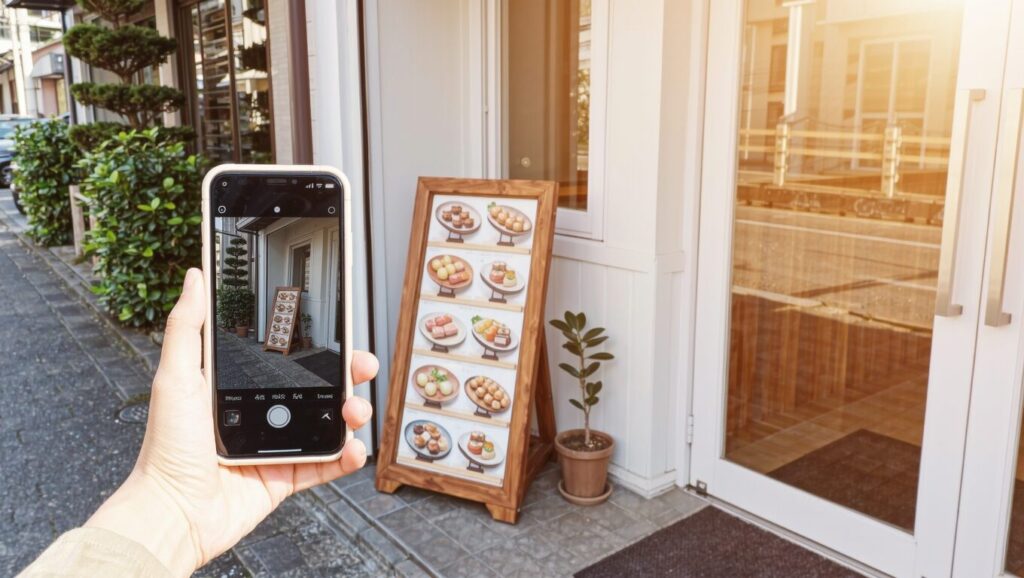
That single sentence predicts almost everything you'll see in Japan.
Printed menus and price lists — the laminated sheet, the plastic-sleeve menu, the convenience store label. This is the camera's home turf. Dish names, 円 prices and allergen lines come out readable.
Station and street signs — strong. Most Japanese signage is already set in clean type, often with English underneath anyway.
Handwritten and brush-lettered boards — the daily specials chalked outside a small restaurant, the brush-script noren curtain, the hand-drawn sake list. Stylised lettering is exactly the case the documentation flags. This is where a Japanese-specific tool earns its place.
Vertical text and dense kanji — mixed. A lot of Japanese menus run top-to-bottom in columns, and column text is harder for general-purpose camera translation than a straight horizontal line.
An App Store review of Google Translate (4.3 out of 5 from 84,000 ratings as of 2026-10) captures the good side nicely: "the update a while back on translating written words from a book etc is simply incredible."
🎯 Four habits that make a real difference
Stop waving the phone. Hold it steady over the text and give the translation a moment to settle before you read it.
Use the flash. The Help Center specifically recommends it in low light, and a basement izakaya at 9pm is low light.
Get closer and shoot one section at a time. A whole menu in one frame gives the app small, crowded characters. Half a menu gives it bigger ones.
Shoot first, translate later. You can translate photos from your gallery, so photograph the menu now and sort it out while you wait for your drink.
🆚 Google Translate, Apple Translate, or a Japanese specialist
Three tools, three different readers.
| Best suited to | |
|---|---|
| Google Translate | Everyone, as the default. Camera works offline once Japanese is downloaded, and it handles typing, photos and signs in one app |
| Apple Translate (iPhone) | iPhone users who want translation built into the system. Settings → Translate → Downloaded Languages, then turn on On-Device Mode. Apple notes offline results may be less accurate than ones processed on its servers |
| Yomiwa | Anyone who wants to decode handwritten or vertical Japanese. Its offline engine recognises more than 4,000 characters and, per the developer, "works for both horizontal and vertical Japanese text" |
Yomiwa also has handwriting input — you draw a kanji you can't type — and a dictionary of around 200,000 entries, which is why it tells you what a dish is, not just what its name says. It holds 4.7 out of 5 from about 1,100 App Store ratings as of 2026-10, and one review there puts it simply: "The photo recognition works great and the app provides a lot of sample sentence to go along with the vocab."
My read after comparing the three: Google Translate is the one to download first and the one you'll open most. Add Yomiwa if you're the kind of traveller who wants to eat at the places with no English menu — vertical-text recognition is the specific gap it fills, and both apps are free to download (Yomiwa sells extras in-app) as of 2026-10.
❓ FAQ
Does Google Translate's camera work with no internet in Japan?
Yes, once you've downloaded Japanese. Check that the download finished before you fly.
Do I need to download English as well as Japanese?
Yes. Offline translation uses the pair, so both packs need to be on the phone.
Can I have a spoken conversation offline?
On Pixel 9, 10 and 11, Japanese↔English is on Google's offline live-translate list. On other phones, use conversation mode when you have a connection.
Is Apple Translate enough on its own for an iPhone?
It covers text and conversations offline with downloaded languages and On-Device Mode. For camera work on menus, most people will still want Google Translate alongside it.
Will this read a handwritten specials board?
Sometimes. Stylised and handwritten lettering is the hardest case for any camera translation, which is where a Japanese-specific OCR app fits better.
Before you close this tab
- Download Japanese and English in Google Translate tonight, on Wi-Fi
- On Android, take the Upgrade pack if it's offered
- Camera and photo translation work offline; conversation mode wants data unless you're on a Pixel 9/10/11
- Hold steady, use the flash, shoot one section at a time — this fixes most bad results
- Add Yomiwa if handwritten or vertical menus are your thing
Your next action: open Google Translate, tap the language at the top, and hit download next to Japanese. Then check the official pages for anything that's changed closer to your flight.
Show sources
- Download languages to use offline – iPhone & iPad — Google Translate Help (accessed 2026-10-07)
- Download languages to use offline – Android — Google Translate Help (accessed 2026-10-07)
- Translate images – iPhone & iPad — Google Translate Help (accessed 2026-10-07)
- Translate images – Android — Google Translate Help (accessed 2026-10-07)
- Hear live speech to speech translations with live translate – Android — Google Translate Help (accessed 2026-10-07)
- Google Translate tips and tricks — Google Translate Help (accessed 2026-10-07)
- Translate text, voice, and conversations on iPad — Apple Support (accessed 2026-10-07)
- Translate text on Mac — Apple Support (accessed 2026-10-07)
- Yomiwa – Japanese Dictionary (developer page) — MWM (accessed 2026-10-07)
- Yomiwa – Japanese Dictionary on the App Store — Apple App Store (accessed 2026-10-07)
- Google Translate on the App Store — Apple App Store (accessed 2026-10-07)

Keep reading

Holafly vs Airalo vs Ubigi Japan eSIM: Price per GB Compared
Holafly vs Airalo vs Ubigi for Japan, compared at their published prices as of 2026-11: cost per GB at 3, 10 and…

Where to Charge Your Phone in Japan: Trains, Airports & Rentals
Where to charge your phone in Japan on a long day out: which bullet train seats have sockets, free airport charging, and…

Can I Bring a Power Bank to Japan? ANA & JAL Rules for 2026
Yes: up to two power banks of 160Wh or less, in your carry-on only. Here's what changed on ANA and JAL in…